iPhone Speaker Not Working? 9 Fixes That Actually Work
No sound from your iPhone’s speaker — music plays silent, videos are mute, the ringtone never rings? Before you assume the speaker is dead and book a repair, work through these nine fixes. In most cases a silent iPhone speaker is caused by a setting, a blocked grille, or water — not failed hardware — and the fix takes minutes.
Try the free speaker cleaner tool
First: work out which speaker is silent
Your iPhone has two speakers: the bottom-edge loudspeaker (music, videos, ringtones, speakerphone) and the earpiece slit at the top of the screen (phone calls). This guide covers the bottom loudspeaker producing no sound. If your earpiece is quiet during calls while everything else sounds fine, read our iPhone earpiece fix guide instead — it’s a different problem with different fixes.
1. Check the Silent switch and volume
This catches more people than any other cause. On iPhones with a physical Ring/Silent switch (iPhone 15 and older), a flicked switch silences ringtones and alerts — check for the orange indicator. On iPhone 15 Pro and newer, the Action button replaces the switch: open Settings > Sounds & Haptics to confirm Silent Mode is off.
Then check volume properly. iPhone keeps ringer and media volumes separate:
- No ringtone? Go to Settings > Sounds & Haptics and drag the Ringer and Alerts slider up.
- No music or video sound? Play something, then press the volume-up button — or swipe into Control Center and drag the volume slider.
2. Disconnect Bluetooth
If your iPhone is connected to AirPods, a car stereo, or a Bluetooth speaker, audio routes there instead of the built-in speaker — even if that device is in another room. Go to Settings > Bluetooth and toggle it off, then test the speaker again. This single step resolves a surprising number of “speaker not working” reports.
3. Turn off Do Not Disturb and Focus modes
Do Not Disturb and custom Focus modes silence calls, alerts, and notifications. Check for the crescent-moon icon in the status bar or Control Center, and turn the Focus off. Also check Settings > Focus to make sure a scheduled Focus (like Sleep or Work) isn’t activating silently.
4. Clean the speaker grille
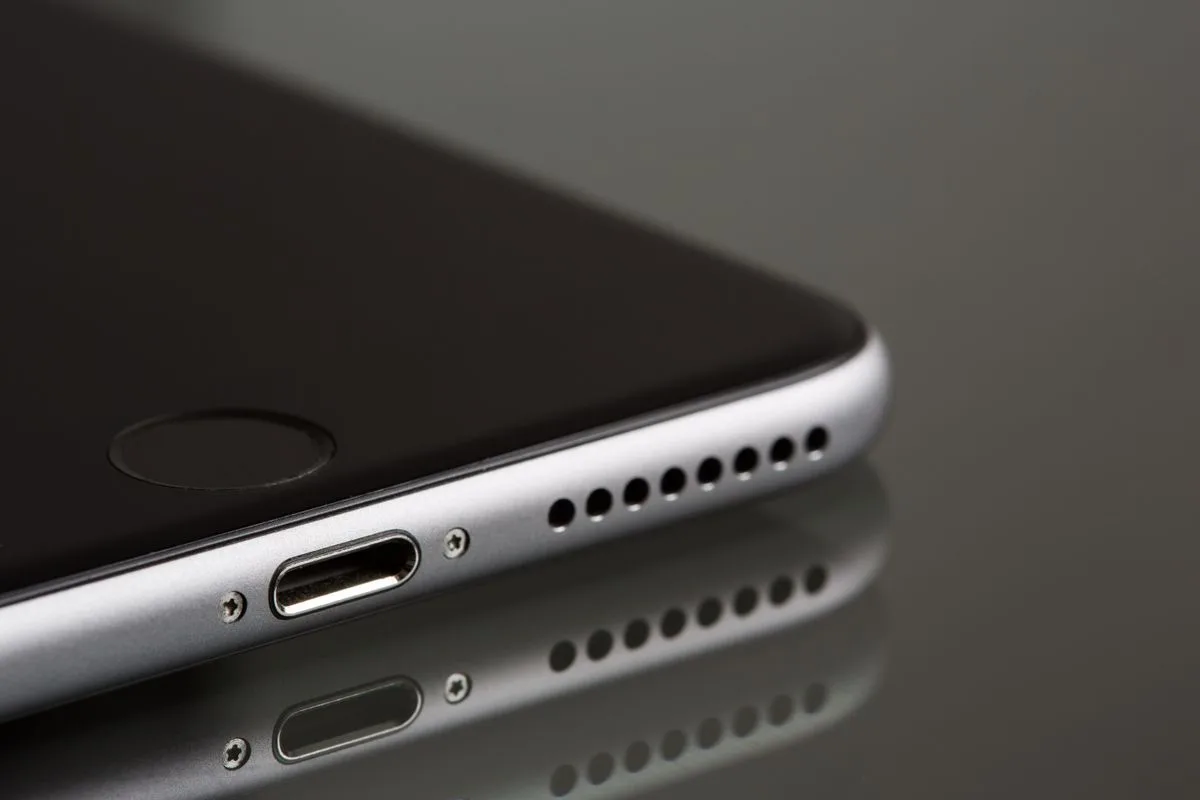
The number-one physical cause of a weak or silent iPhone speaker is a clogged grille. The tiny holes along the bottom edge collect pocket lint, dust, and skin oils until sound can barely get through — and the buildup is often invisible.
Clean it gently:
- Dry soft brush. Use a clean, dry soft-bristled toothbrush. Short, light strokes across the grille holes — never press hard.
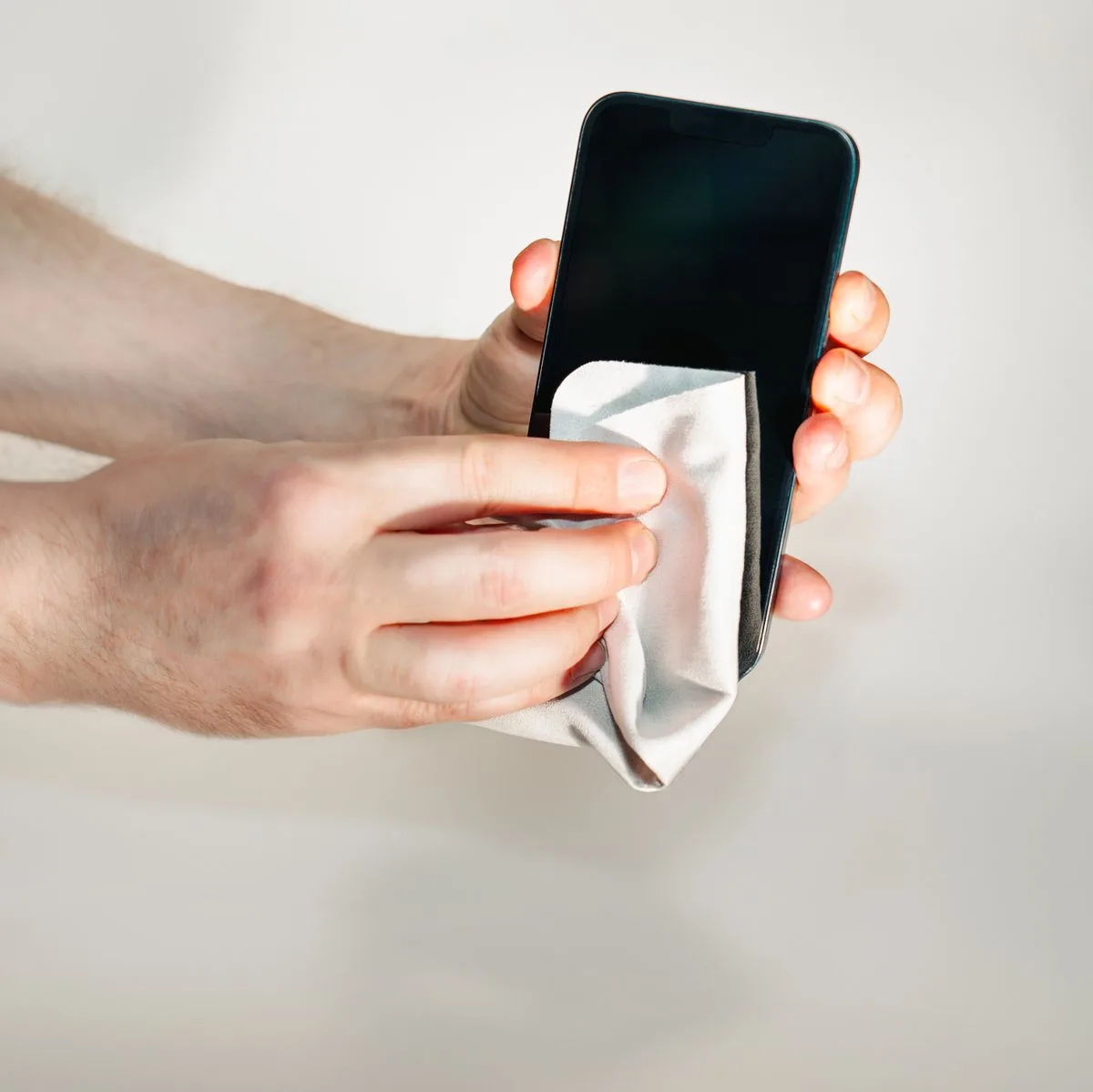
- Soft cloth wipe. Follow with a dry microfibre cloth to lift loosened debris.
- Never poke anything in. No pins, needles, SIM ejectors, or toothpicks. The speaker membrane sits directly behind the grille and punctures easily — a punctured speaker distorts at every volume until replaced.
5. Eject water from the speaker
If the speaker went quiet after the phone got wet — rain, sink, pool — water may be trapped behind the grille, muffling the membrane. Don’t use a hair dryer or rice; both are ineffective and heat can damage the phone. Instead, play low-frequency tones at full volume with the speaker facing down: the vibrations push water droplets out through the grille. Our free water eject tool runs the right frequencies from your browser — it takes about a minute. For the full method, see how to get water out of a phone speaker.
6. Shake loose dust with sound
Fine dust deeper in the grille sometimes survives brushing. Low-frequency sound waves vibrate the speaker membrane and dislodge what the brush can’t reach — the same principle behind the Apple Watch’s water eject feature, explained in how it works. Run our dust cleaning tool for one or two minutes with the volume up and the speaker facing down, then test again.
7. Restart your iPhone
iOS’s audio pipeline occasionally gets stuck — especially after updates or heavy Bluetooth use — leaving the speaker silent with no hardware cause at all. A plain restart clears it: hold the side button and either volume button, slide to power off, wait 30 seconds, and power back on. Test the speaker before doing anything more drastic.
8. Update iOS and check audio settings
Apple ships audio driver fixes in iOS updates, so install any pending update at Settings > General > Software Update. While you’re there, check two settings that reroute or reshape audio:
- Mono Audio and balance (Settings > Accessibility > Audio/Visual) — Mono Audio should normally be off; if it’s on with the balance slider pushed to one side, one channel goes quiet.
- Bluetooth audio routing — already covered in fix 2, but double-check no forgotten device is connected.
As a last software resort, try Settings > General > Transfer or Reset iPhone > Reset > Reset All Settings. This keeps your data and apps but returns every setting to defaults — it clears whatever misconfiguration is muting the speaker.
9. Take the case off
Some cases — especially cheap or poorly fitting ones — partially cover the bottom speaker grille. Others trap a layer of dust between the case and the phone that you never see. Pop the case off, inspect the grille, and test the speaker bare. If sound returns, the case was the problem all along.
When it’s actually hardware
If you’ve worked through all nine fixes and the speaker is still silent, stop troubleshooting software and consider hardware. See Apple or a reputable repair shop if:
- The speaker is completely silent at every volume after cleaning and a restart.
- Sound is distorted, crackly, or buzzy at all volumes — likely a damaged membrane or voice coil. (For crackling specifically, see our crackling diagnosis guide.)
- The problem started right after a drop — impact can detach the speaker driver.
- The phone got wet and the speaker stayed silent after 48 hours of drying — corrosion doesn’t clear with cleaning. See speakers that fail after water exposure.
- The speaker sounds muffled rather than silent — see why a phone speaker sounds muffled.
Bottom-speaker replacement is a routine repair and relatively inexpensive out of warranty. If the phone is under AppleCare or warranty with no accidental damage, check coverage before paying anything.
FAQ
Why is my iPhone speaker suddenly not working?
The most common causes are the Silent switch being on, audio routing to a Bluetooth device, a clogged speaker grille, or water trapped behind the grille. Work through the settings checks first, then clean the grille — genuine hardware failure is the least likely explanation.
How do I know if my iPhone speaker is damaged or just dirty?
Clean the grille and restart first. If sound returns, it was blockage. If the speaker is distorted or buzzy at every volume even after cleaning, the membrane is likely damaged and needs replacement.
Can I use a toothpick to clean my iPhone speaker holes?
No. Pins, toothpicks, and SIM ejectors can puncture the speaker membrane directly behind the grille. Use only a dry soft brush and a microfibre cloth — or sound-based cleaning for deeper dust.
Will playing water-eject tones damage my iPhone speaker?
No — the tones are within the speaker’s normal operating range, at volumes the speaker handles during everyday music playback. Keep cycles to a couple of minutes and stop if you hear rattling, which suggests existing damage.
Why does my iPhone speaker work for calls but not music?
Calls use the earpiece while media uses the bottom loudspeaker, and iPhone keeps separate volumes for each. Check media volume during playback, disconnect Bluetooth, and clean the bottom grille — the earpiece working proves the audio system is fine.