
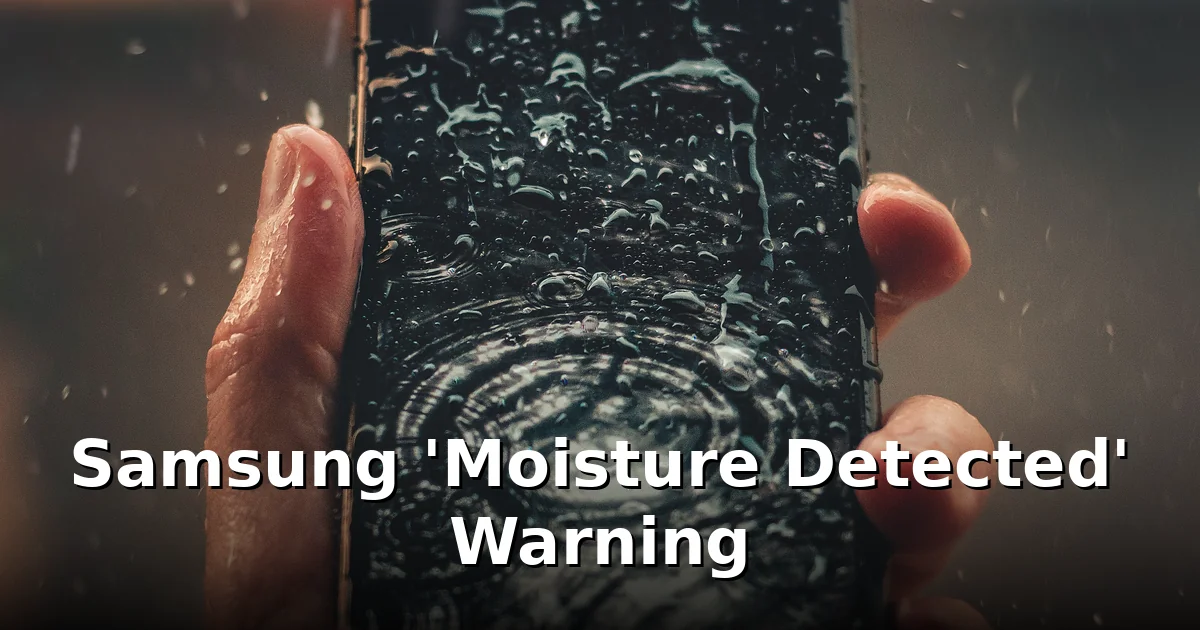
You plug in your Samsung phone and instead of the charging animation, you get a message: “Moisture has been detected in your charger/USB port. Make sure it’s dry before charging.” The phone then refuses to charge. Annoying — but that warning exists to save your phone from serious damage. Here’s what it actually means, what to do right now, and how to tell a false alarm from a genuinely wet port.
What the warning actually is
Samsung phones (Galaxy S and A series from roughly the S8 onward) have moisture sensors in the USB-C port. When the sensor detects water or high humidity in the port, the phone blocks charging to prevent a short circuit. Charging a wet port can corrode the pins, fry the charging IC, or in the worst case cause the port to fail permanently. The phone is protecting itself — and you.
The warning usually appears after the phone has been near water: rain, a sweaty pocket, a spilled drink, a bathroom steam session, or an actual dunk. Sometimes it appears when nothing seems wet — condensation from moving between cold air and a warm room can be enough to trip the sensor.
First: do what the warning says — unplug it
Don’t try to override or dismiss the warning and charge anyway. On some models you can tap through it, but you shouldn’t. Electricity plus water inside a charging port is how corrosion starts, and corroded pins are how a “my phone charges slowly” problem becomes a “my phone won’t charge at all” repair.
If you absolutely must charge the phone, use a wireless charger — the moisture sensor only guards the USB-C port, and wireless charging works fine while the port dries. Keep in mind the phone itself is still damp, so dry the exterior first.
How to dry the port safely
- Power the phone off. Fewer active circuits, less risk.
- Shake it out gently. Hold the phone with the USB-C port pointing down and give it a few gentle flicks. You’re helping gravity pull droplets out of the port.
- Pat, don’t poke. Dab around the port opening with a dry, soft cloth or a corner of a paper towel. Never insert cotton swabs, tissues, toothpicks, or anything metal into the port — you’ll bend pins, leave fibres behind, or push moisture deeper.
- Air-dry with the port facing down. Leave the phone in open air, port down, for 3–5 hours (Samsung’s own guidance). A fan blowing gently across the phone speeds things up considerably. Our phone-dropped-in-water first aid guide covers the full drying routine if the whole phone got wet, not just the port.
- Try charging again. Once the sensor reads dry, charging resumes normally. If the warning is still there after 5+ hours, the port may still be damp in a spot air can’t reach — give it longer, up to 24 hours.
Your speaker probably got wet too
If the phone went swimming, the charging port isn’t the only place water hides. The bottom speaker grille sits right next to the USB-C port and traps droplets the same way — you’ll hear it as muffled, crackly, or quiet audio. Run a low-frequency cleaning cycle to vibrate the water out: our free speaker cleaner plays the tones from your browser with the volume up, speaker facing down. For the full method, see how to get water out of a phone speaker.
What NOT to do
- Don’t use a hair dryer or heat gun. Heat can warp seals, melt adhesives, and damage the battery. Room-temperature air only.
- Don’t put the phone in rice. Rice does almost nothing — independent tests show it barely outperforms open air, and starch dust gets into the port and speaker grille. See does rice actually fix a wet phone for the full debunking.
- Don’t blow into the port with your mouth. Your breath is humid and pushes moisture deeper.
- Don’t use compressed air at close range. A distant, gentle puff is fine; blasting it point-blank drives water further in.
- Don’t keep rebooting the phone hoping the warning clears. The sensor measures actual moisture. It clears when the port is dry.
When the warning won’t go away
If the port is definitely dry and the warning persists for more than a day, one of these is happening:
- The sensor itself is dirty or damaged. Lint and pocket debris in the port can hold enough moisture to keep the sensor tripped. Inspect the port with a flashlight — if you see lint, pick it out gently with a dry wooden toothpick (wood won’t scratch pins the way metal can).
- Corrosion has started. Greenish or dark residue on the pins means corrosion. Stop using the cable in that port and get it looked at — corrosion spreads.
- It’s a genuine false positive. Rare, but it happens after software updates. If the port is bone dry and clean, a restart sometimes clears a stuck warning. If not, it’s a service-centre job.
Also worth knowing: Samsung’s water resistance (IP67/IP68 on flagships) degrades over time as seals wear, and Samsung does not cover liquid damage under warranty even on water-resistant models. The warning is your early alert — take it seriously.
Frequently asked questions
Can I still use my phone while the moisture warning is on?
Yes — the warning only blocks wired charging. Calls, apps, and the screen all work normally. Just don’t plug in a cable until it clears.
How long does the moisture detected warning last?
Typically a few hours of air-drying. Samsung advises up to 5 hours; in humid rooms it can take longer. If it’s still there after 24 hours of drying, inspect the port for lint or damage.
Is wireless charging safe with the moisture warning on?
Yes. The moisture sensor guards the USB-C port, not the wireless charging coil. It’s the safest way to charge while the port dries — just make sure the phone’s exterior is dry first.
My port looks dry but the warning won’t clear. Is the sensor broken?
Possibly dirty rather than broken. Shine a light into the port — lint holds moisture against the sensor. Gently remove debris and dry again. If it’s spotless and still tripped after 24 hours, have it checked.
Does the moisture warning mean my phone is water damaged?
Not necessarily. It means the sensor detected moisture — which is exactly what it’s for. Act on it promptly (dry the port, don’t force-charge) and there’s usually no lasting damage.
CTA: Phone took a dunk? Run the free speaker cleaning cycle to push water out of the speaker grille, then let the charging port air-dry before plugging in.

2 Comments
Comments are closed.