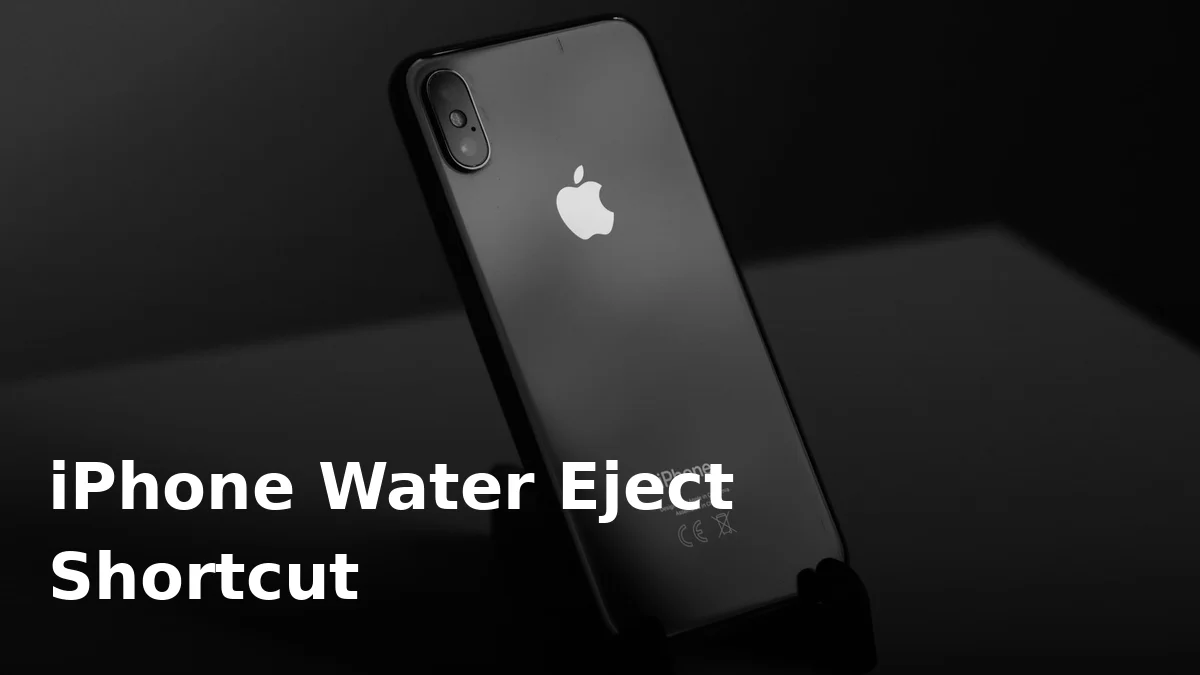
The Apple Watch has a built-in water eject feature — swipe up, tap the water drop, and the watch plays a tone that pushes water out of its speaker. iPhones don’t have this button. But you can add the next best thing: a water eject shortcut in the Shortcuts app that plays the same kind of tone through your iPhone’s speaker with one tap.
It takes about two minutes to set up, costs nothing, and lives on your phone ready for the next splash.
What the Shortcut Actually Does
The shortcut plays a specific low-frequency tone through your iPhone’s speakers for a set duration. The sound waves vibrate the speaker membrane, which physically shakes trapped water droplets loose and pushes them out of the speaker chamber.
It won’t fix a corroded speaker or resurrect a drowned phone — but for the common case (“my speaker sounds muffled after it got wet”), it’s the fastest fix available. If you want the full picture of why this works, see our guide to ejecting water from an iPhone speaker.
How to Add the Water Eject Shortcut
You need the Shortcuts app (it comes pre-installed on iPhones; if you deleted it, grab it free from the App Store). Then:
- Open the Shortcuts app and tap the Gallery tab at the bottom.
- Tap the search bar and type “Water Eject”.
- You’ll see a shortcut called Water Eject in the results — tap it, then tap Add Shortcut.
- It now appears in your My Shortcuts list. Tap the three dots on it if you want to rename it or add it to your Home Screen (tap the share icon → Add to Home Screen).
That’s the whole setup. The shortcut is made by a third-party creator (not Apple), but it only does one thing — play a tone — and it doesn’t ask for your data or any permissions beyond playing sound.
How to Use It When Your iPhone Gets Wet
- Dry the outside of the phone first with a cloth, and make sure the charging port area isn’t visibly wet. If your iPhone warns about liquid in the connector, don’t charge — but running the shortcut is still fine. (See how to get water out of a charging port if the warning won’t clear.)
- Turn the volume up to maximum.
- Open Shortcuts (or tap the Home Screen icon) and run Water Eject.
- Hold the phone with the speaker facing down so gravity helps the water escape.
- Let it run through the full cycle. Run it 2–3 times, checking the sound between cycles.
Most people hear a clear improvement after the first or second run. If the speaker still sounds dull after three cycles, the water may be deeper inside — give the phone several hours to air-dry, then try again.
Don’t Have an iPhone? Use the Web Tool Instead
The Shortcuts app is Apple-only, so Android and Samsung owners can’t use this trick. The good news: you don’t need it. Our free water eject tool plays the same kind of eject tones through your browser — no app, no shortcut, no download. It works on any phone, including iPhones, if you’d rather not install anything.
Before and After: The Important Bits
- Don’t charge a wet iPhone. Liquid in the Lightning or USB-C port plus electricity is how ports get destroyed. Wait until the phone is fully dry.
- Don’t use heat. A hair dryer on hot can damage the water-resistant seals. Room-temperature air drying is safer.
- Remove the case so water trapped between the case and the phone can evaporate.
- If it was salt water, rinse with fresh water first — salt corrodes, and no shortcut fixes corrosion. See our salt water guide for the full routine.
Limitations Worth Knowing
The shortcut is a convenience, not a miracle. It moves liquid water out of the speaker chamber — it doesn’t dry the inside of the phone, remove salt, or repair a speaker membrane that’s already damaged. If your speaker still crackles or stays quiet after drying and several eject cycles, check our guide on whether your speaker is blown to decide your next step.
Frequently Asked Questions
Is the water eject shortcut safe for my iPhone?
Yes. It just plays a sound at high volume — the same thing as playing loud music. It doesn’t change any settings or access your data.
Does the shortcut work on iPad?
It runs on iPad too, but the tone is tuned for phone-sized speakers. It may help with an iPad speaker, but results vary.
Why doesn’t the iPhone have a built-in water eject like the Apple Watch?
Only Apple knows for sure, but the Watch’s speaker is tiny and the feature was designed for swimmers. iPhones rely on their water-resistance rating instead — which, notably, doesn’t cover the speaker sounding muffled after a swim.
The shortcut didn’t fix my speaker. Now what?
Let the phone dry for several more hours — deep moisture takes time. Then run the eject tone again. If it’s still muffled after a full day of drying, the speaker mesh may be clogged with debris or the speaker itself may be damaged.
Can I use this shortcut preventively, like once a month?
You can, and some people do — a monthly eject cycle shakes out dust as well as moisture. It’s harmless, though a soft brush is better for dry dust.
Rather skip the setup? Our free speaker cleaner does the same job in your browser — open the page, tap the water eject mode, and you’re done. No shortcut required.